
How To Print Baby Photos From Phone Without Blur
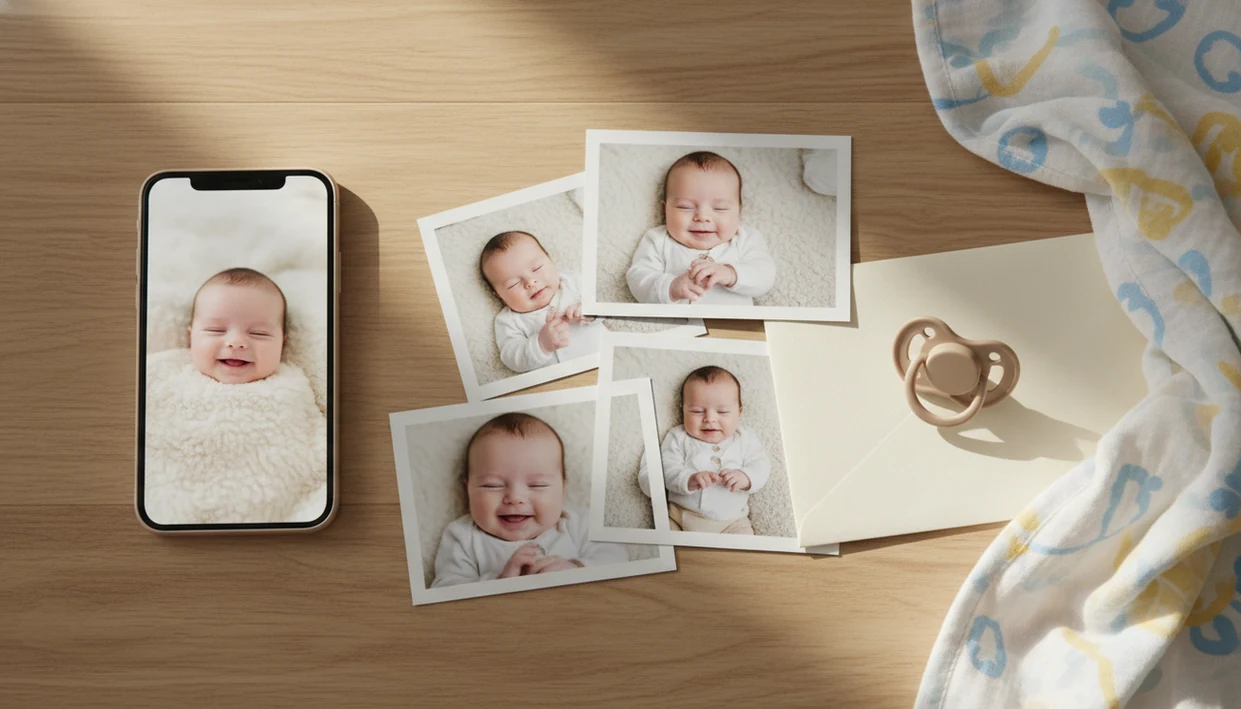
The safest way to learn how to print baby photos from phone is to choose the original image, check the crop and resolution, export without heavy compression, then order through a trusted photo-printing app or local pickup service. For sharp baby prints, avoid screenshots, keep the baby’s face away from the edges, and match the photo shape to the print size before checkout.
> Definition: Printing baby photos from a phone means sending original camera-roll images from an iPhone or Android device to a photo lab, kiosk, home printer, or print app after checking size, crop, brightness, and file quality.
- Use original photos, not screenshots or compressed social-media downloads.
- Choose 4x6, 5x7, square, or book formats based on the photo’s crop and the gift purpose.
- Review face placement, lighting, and borders before placing the order.
Baby Photo Print Guide: 5 Facts Before You Order
- Phone-based printing is normal now. Pew reported very high smartphone ownership among U.S. adults in common parenting age groups in 2023, so most parents can start from the camera roll source.
- A photo can look crisp on a bright phone screen but print soft when enlarged. The tiny hospital ID bracelet may vanish into blur at 8x10.
- Baby faces, curled fingers, hats, milestone cards, and blanket edges all need crop review before checkout. Check the crop before you trust the preview.
- Same-day pickup is useful for a quick frame, but shipped prints and albums often give more choices in size, paper, borders, and book layouts.
- Loose prints suit albums, framed gifts suit grandparents, and milestone pages suit a first-year memory book.
For most families, 4x6 test prints are often easier than starting with large frames because they expose blur and crop problems cheaply.
Before You Start: What You Need To Print Baby Photos From A Phone
Before you order, gather the real photo file, confirm where it is stored, and decide what the finished print needs to become. A few practical checks prevent blurry screenshots, missed pickup windows, and awkward crops on baby keepsakes.
- Find the original camera-roll image instead of a screenshot, text-message preview, or social-media save. The original usually keeps more detail in eyelashes, blanket texture, and tiny fingers.
- Open your cloud library if the picture lives in iCloud or Google Photos, and make sure the full-resolution version is available on the phone before uploading.
- Choose the final use first: album page, frame, card, magnet, or photo book. That choice affects size, crop, paper finish, and whether text or stickers need extra space.
- Confirm the deadline, delivery address or pickup store, and the number of copies before checkout. Grandparent gifts get complicated fast when one household needs two prints and another needs five.
- Clean up obvious distractions before exporting edited or templated baby photos. Crop out the laundry pile, soften a harsh shadow, and remove anything that pulls attention from the baby.
How Phone-Based Baby Picture Printing Works
Phone-based baby photo printing works by uploading an image file, reading its pixel dimensions, applying your selected crop, and sending that prepared file to a printer or photo lab. The print result depends on resolution, compression, focus, lighting, paper type, and how much the image is enlarged.
For sharp close-viewed photo prints, many labs and editing tools use pixel dimensions to judge whether a file can support the selected size; 300 pixels per inch is a common photo-printing target for high-detail prints source.
Automatic crop tools usually fit your picture into standard print ratios. That sounds helpful, but it can cut off a knit hat, a tiny bow, or the top of a milestone card. We always check whether a 4x6 print will trim the top of a baby’s hat before ordering.
Tools like Baby Photo Art can help prepare natural-looking milestone templates and keepsakes before printing. Good AI-powered baby and newborn photo generators with stickers, milestone templates, and portrait-style edits for parents deliver small adjustments, themed layouts, and print-ready exports, not a new baby with an unrecognizable face.
Step 1: Pick Original Baby Photos From Your Phone
“Which baby photos should I print from my phone?” Choose the original camera-roll image, not a screenshot, messaging-app save, or social-media download. Originals usually keep more detail, especially around eyelashes, outfit texture, and blanket patterns.
Zoom in before you upload. Check the baby’s eyes, mouth, fingers, and outfit seams. If the feet blurred from kicking on a blanket, keep that one small or use it in a collage rather than a large frame.
Avoid dark shadows, heavy filters, and motion blur when printing bigger than 4x6. A dim hospital-room photo with a wrinkled white blanket and a rolling bassinet in the background can still be meaningful, but it needs realistic expectations.
For AI-edited images, use a natural-looking edit and export the highest-quality version. A safe AI baby photo app should keep the baby’s face recognizable before you print.
Step 2: Match Baby Photo Crop Ratio To Print Size
Different print sizes use different shapes, so one baby photo will not crop the same way at 4x6, 5x7, 8x10, and square. Keep the baby’s face away from the edge before ordering, especially with vertical phone photos.
| Print format | Shape | Good use | Crop risk |
|---|---|---|---|
| 4x6 | 2:3 rectangle | Everyday snapshots, albums | Usually forgiving, but still check edges |
| 5x7 | 5:7 rectangle | Small framed gifts, announcements | Can trim sides or top detail |
| 8x10 | 4:5 rectangle | Wall frames, nursery display | Often crops vertical phone photos tightly |
| Square | 1:1 | Social-style prints, magnets | May cut top and bottom detail |
| Photo book | Mixed layouts | First-year keepsakes | Text and borders can shift by template |
As a quick quality check, a 4x6 print at 300 ppi needs about 1200x1800 pixels, a 5x7 needs about 1500x2100 pixels, and an 8x10 needs about 2400x3000 pixels. If your file is far below those numbers, choose a smaller print or use the photo in a collage.
Vertical phone photos may lose the top or bottom in some formats. A one-month card near curled toes can disappear if the print app centers only the face.
Baby photos usually print best when the subject has breathing room on all sides, while tight crops fit smaller keepsakes and social-style square prints.
Step 3: Adjust Baby Photo Brightness And Color Gently
Adjust brightness only enough to reveal the baby’s face and skin tone. If the bedside lamp gave the cheeks an orange cast, reduce warmth slightly instead of making the whole photo cool and gray.
Go easy. Newborn skin has texture.
Avoid extreme smoothing, neon filters, high contrast, and oversaturation. Those edits can look dramatic on a phone, but paper is less forgiving. Soft nursery lighting, peach fuzz, and the small shadows around a baby’s nose often print better than a plastic-smooth finish.
Baby Photo Art focuses on safe, natural-looking baby edits, milestone templates, stickers, portraits, and print-ready keepsakes. For a deeper export checklist, the print-ready baby photo exports guide covers file preparation before sending pictures to a lab.
Step 4: Use A Phone Photo Printing App Or Pickup Service
iPhone and Android users can follow the same basic phone-to-print workflow. The service may be a photo-printing app, an online lab, a local store pickup option, a kiosk, or a compatible home printer.
Common phone-to-print options include Shutterfly, Snapfish, Walgreens Photo, CVS Photo, Google Photos print ordering, local camera shops, and home printers such as Canon or Epson models.
- Choose a service that offers the print size, finish, pickup, or delivery option you need.
- Upload original baby pictures from your camera roll or cloud photo library.
- Select a size such as 4x6, 5x7, 8x10, square, or photo book.
- Review the crop for faces, hands, hats, milestone text, and blanket edges.
- Choose glossy, matte, borders, quantity, and home delivery or same-day pickup.
- Order one test print first if the photo will become a framed gift.
Home delivery usually gives more product choices. Same-day pickup is better when a grandparent visit is tomorrow morning. If you are making several prints for relatives, a baby photo collage maker can help combine related moments before ordering.
Step 5: Review Baby Picture Prints Before Checkout
Before checkout, inspect every baby picture as if it were already in a frame. Check face position, hands, milestone text, hats, bows, blankets, borders, and any sticker or caption near the edge.
A good final preview should still show the tiny details parents notice first: the sleep crease on one cheek, the hospital bracelet, the name card, or the edge of the knitted hat.
Then confirm the practical details: quantity, size, paper finish, delivery address, pickup location, and turnaround time. It sounds basic, but a printed collage on the dining table feels less sweet when one grandparent received three copies and another received none.
Glossy paper makes colors look bright and crisp, but it shows fingerprints and glare. Matte paper looks softer, handles better, and suits albums that relatives flip through often.
Order one test print before buying large framed prints or bulk grandparent gifts. For relatives who want repeat keepsakes, an app to help make baby photos for grandparents can keep the workflow simple.
Common Myths About Printing Baby Photos From Phone
Myth 1: You need a desktop computer. Most photo services now accept uploads directly from a phone, so the camera roll can be the starting point and the ordering tool.
Myth 2: Screenshots are always print-ready. Screenshots often have fewer pixels than the original photo and may print fuzzy, especially beyond small sizes.
Myth 3: Every print size uses the same crop. A 4x6, 5x7, 8x10, and square print each uses a different shape, so preview each one separately.
Myth 4: Same-day pickup always means the same quality. Local lab capacity, paper stock, machine settings, and available finishes can vary.
Myth 5: AI-edited baby portraits always look identical on paper. Screen brightness, paper finish, and lab color handling can change the final look.
Limitations
Phone-based baby photo printing is convenient, but it cannot fix every image problem. Keep these limits in mind before ordering keepsakes or gifts.
- A blurry original photo will usually remain blurry in print.
- Dark, compressed, or low-resolution images may not enlarge well.
- Automatic cropping can remove faces, hands, milestone cards, nursery details, or a visible hospital bracelet.
- Same-day pickup depends on store hours, local lab capacity, product availability, and seasonal order volume.
- Budget prints may fade faster than higher-quality photo paper or archival albums.
- AI-edited baby portraits and sticker-style images may print differently across paper finishes and labs.
- Small text on milestone templates can become hard to read if printed too small.
- A cluttered kitchen counter behind a baby in a bouncer may become more noticeable on paper than it was on your phone.
The CDC notes that developmental milestones are commonly tracked from the first months of life, which helps explain why printed milestone keepsakes are popular source.
FAQ
Can I print baby photos from iPhone?
Yes. iPhone users can print through photo apps, store pickup services, online labs, AirPrint-compatible printers, or photo kiosks.
Can I print baby photos from Android?
Yes. Android users can upload camera-roll images to print apps, store apps, online services, or compatible printers.
What size is best for baby photos?
Use 4x6 for snapshots, 5x7 for small gifts, 8x10 for framing, and square prints for social-style crops. The best size depends on crop, resolution, and display purpose.
Why are my baby prints blurry?
Baby prints often look blurry because of motion, poor focus, low resolution, screenshots, compression, or enlarging the image too much. Use the original file and order a smaller test print first.
Are screenshots good for printing?
Screenshots are usually worse than original photo files because they contain less image detail. Use them only for very small prints if no original exists.
Should baby photos be glossy or matte?
Glossy prints make colors look brighter and sharper. Matte prints reduce glare and handle fingerprints better, which helps when family members pass them around.
Can I print milestone baby photos?
Yes. Check milestone text placement, crop, resolution, and export quality before ordering prints, cards, or photo book pages from BabyPhotoArt or another editor.
How do I avoid cropped faces?
Preview each print size before checkout, leave space around the baby’s face, and manually adjust the crop. Do not assume one crop works for every size.
Can grandparents order baby prints?
Yes. Grandparents can order from shared albums, emailed originals, print-app links, or local pickup services if they have access to the image file.