
Print-Ready Baby Photo Exports for Keepsake Gifts
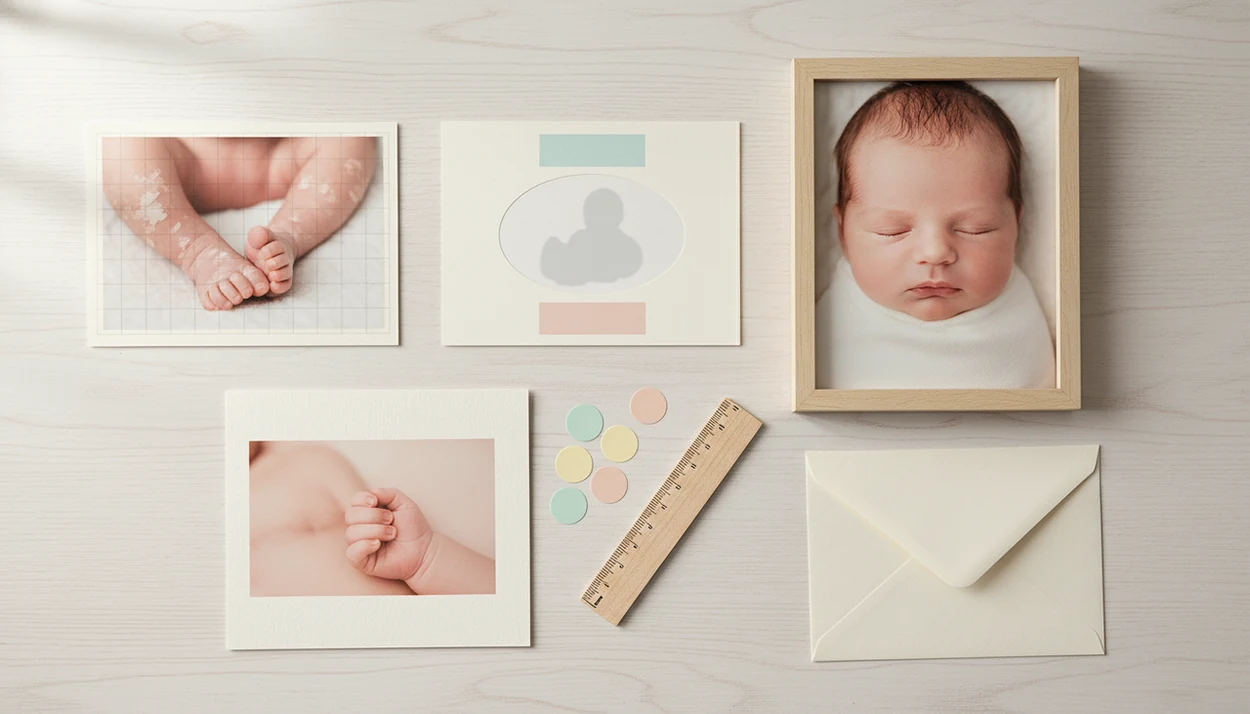
Print-ready baby photo exports are baby or newborn image files saved at the final print size, high resolution, and printer-friendly format so cards, frames, albums, and keepsake gifts come out sharp. For most parent projects, choose the exact print size first, export at 300 PPI/DPI when possible, check crop safe areas, and use PDF or high-resolution JPEG based on the photo lab’s requirements.
A print-ready baby photo export is a finished baby photo file prepared at the correct dimensions, resolution, color settings, and format for printing without extra fixes.
- Export baby photos at 300 PPI/DPI at the final print dimensions whenever possible.
- Match the crop ratio to the gift format, such as 4x6, 5x7, 8x10, square album pages, or card templates.
- Check faces, milestone text, stickers, bleed, file format, and watermark removal before ordering prints.
Print-Ready Baby Photo Exports at a Glance
Print-ready means the file is already sized, sharpened, cropped, and saved for the product you plan to order. For baby keepsakes, that usually means 300 PPI/DPI at the final printed size, plus a crop that protects the baby’s face, milestone text, and stickers.
A 4x6 frame, a 5x7 announcement, and an 8x10 wall print do not crop the same way. That matters when tiny fingers are curled near the mouth or a month marker sits near the bottom edge. Common export formats are high-resolution JPEG for standard photo prints and PDF for cards, invitations, or designed layouts.
Lab specs override general advice. Always check the photo lab’s upload notes before ordering. For example, Shutterfly, Walgreens Photo, and Nations Photo Lab may use different upload limits, product templates, color handling, and crop previews. Treat the 300 PPI rule as a safe starting point, not a substitute for the lab’s exact product spec.
Five Facts Parents Need Before Exporting Baby Photos for Print
- A print-ready baby photo export needs no printer corrections because the size, crop, resolution, color, and file format are already set.
- 300 PPI/DPI at final print size is the safest target for sharp baby photos, especially for cards, albums, and framed gifts.
- Professional printers may prefer CMYK files, while many consumer photo labs accept high-resolution RGB JPEGs from phones and apps.
- Bleed is needed when a background, sticker, frame, or announcement design runs all the way to the paper edge.
- Stickers, milestone text, templates, background changes, and AI edits should be flattened into one final file before printing.
Small details show up in print. A soft spit-up spot on muslin may disappear on your phone, then become obvious in a glossy 8x10.
Before You Export Baby Photos for Print
Before you export, make sure the baby photo is the best available source and that the gift format is already chosen. Most print problems start before export, when a screenshot, social download, or wrong-shaped template gets decorated like a final file.
- Start with the original full-resolution photo from your phone, camera, or editing app, not a saved preview from a text thread or social feed.
- Choose the exact product first, such as a 5x7 announcement, square album page, canvas, ornament, or framed print, before adding names, dates, stickers, or borders.
- Check the photo lab’s upload rules for accepted file types, maximum file size, bleed, safe zones, and whether the product preview crops the edges.
- Save an editable copy with the text, stickers, frames, and portrait edits still adjustable before you flatten the final print-ready file.
- Order a small test print when the project is expensive or sentimental, especially for birth announcements, canvases, albums, and grandparent gifts.
That extra proof can catch a misspelled middle name, a too-dark nursery wall, or a crop that trims the baby’s hat.
How Print-Ready Baby Photo Exports Work
A print-ready baby photo export works by matching pixels to physical inches before the file goes to print. At 300 PPI, each printed inch uses 300 pixels; a 4x6 print therefore needs about 1200x1800 pixels for a sharp result.
Pixels are the image data. Inches are the final paper size. Crop ratio controls what part of the image fits that paper. An 8x10 crop can cut off more from the sides than a 4x6 crop, which is risky if the baby’s knit hat or name sticker sits near the edge.
Screen sharpness does not guarantee print sharpness because phones shrink images for display. Tools like Baby Photo Art can combine templates, stickers, portrait-style edits, and milestone layouts, but the final export still needs to be flattened at the print size. Good AI-powered baby and newborn photo tools deliver small adjustments, milestone templates, stickers, and portrait-style edits for parents, not a different baby.
In Baby Photo Art, the practical export check is simple: confirm the final keepsake size, preview the crop, remove any draft watermark, and save one flattened file before sending it to the lab.
Baby Photo Print Size and Pixel Requirements
Choose the baby photo print size before you decorate the image. The Library of Congress lists 4x6, 5x7, and 8x10 among common home photo sizes, and those sizes use different shapes source. The National Archives also notes that high-quality reproduction is commonly prepared at 300 pixels per inch at final size source.
Common Keepsake Photo Sizes
| Keepsake product | Common size | Crop caution |
|---|---|---|
| Standard photo | 4x6 | Fits many phone snaps well |
| Gift frame | 5x7 | Slightly tighter crop |
| Wall print | 8x10 | Crops differently than 4x6 |
| Album page | Square | Can cut side details |
| Announcement card | 5x7 or custom | Needs bleed and safe zones |
Simple 300 PPI Pixel Math
| Print size | Pixel target at 300 PPI |
|---|---|
| 4x6 | 1200x1800 |
| 5x7 | 1500x2100 |
| 8x10 | 2400x3000 |
For grandparents’ albums, a baby photo collage maker should still export each finished layout at the final print size.
How to Use Print-Ready Baby Photo Exports
Use print-ready baby photo exports by deciding the gift first, then building the file around that exact size. For important keepsakes, a test print is often safer than ordering twenty cards from an untested file because color and trim can surprise you.
- Set the final product first, such as a 4x6 print, 5x7 card, square album page, or canvas.
- Choose the matching crop ratio before adding milestone text, frames, or stickers.
- Export at the final size and 300 PPI/DPI where the app or lab allows it.
- Select PDF for cards and designed layouts, or high-resolution JPEG for standard photo prints.
- Review the file at 100% zoom and check the baby’s face, text, and edges.
- Order one test print before albums, canvases, or bulk announcements.
If you are starting from a phone snap, the fuller workflow is covered in how to print baby photos from phone.
Export Baby Photos for Print Without Cropped Faces or Text
“Why did my baby photo print cut off the face or milestone text?” The usual cause is an aspect ratio mismatch, unsafe edge placement, or a missing bleed area in the product template.
Keep baby faces away from trim edges. Put milestone labels, dates, stickers, and names inside the safe zone, not against the border. Full-background cards and announcements usually need bleed, often 0.125 inch on each side, so the printer can trim cleanly without leaving a white edge. Adobe’s print-bleed guidance also uses 0.125 inch as a common bleed allowance for trimmed designs source.
Preview the exact product template before ordering. A canvas print above a nursery chair may wrap around the sides, so details near the edge can disappear. The same file may look fine as a flat photo but wrong on a wrapped canvas.
Common Myths About Print-Ready Baby Photo Exports
Phone-screen sharpness. A baby photo can look crisp on a small screen and still print soft if it lacks enough pixels for the chosen size.
Any JPEG works. A JPEG is only print-ready when it has the right dimensions, resolution, crop, and compression level.
Bleed does not matter. Full-edge baby announcements need bleed and safe zones, or text and stickers may trim badly.
RGB and CMYK match exactly. They can shift, especially with bright blues, reds, and soft skin tones.
Tiny exports can be rescued. Social media downloads and screenshots are poor sources for large prints. Upscaling may help a little, but it cannot recreate the original detail in a dim hospital-room photo with a wrinkled white blanket.
Print-Ready Baby Photo Export Verification Checklist
Before you order, verify the file like a printer would. Check final dimensions, pixel size, and resolution first; the National Archives notes that high-quality reproduction is commonly prepared at 300 pixels per inch at final size source.
Next, match the file format to the lab’s requirements. Check whether the lab wants PDF, JPEG, RGB, or CMYK. Expect some color change if a bright RGB design converts to CMYK.
Flatten stickers, text, templates, and portrait edits into one final file. Remove preview watermarks unless they are intentionally part of the design. Then proof spelling, dates, age labels, and milestone numbers. “11 months” is easy to miss at midnight.
For family gifts, an app to help make baby photos for grandparents should still allow a small test print before larger orders.
Limitations
Print-ready settings reduce risk, but they do not remove every printing variable. Use them as quality controls, not guarantees.
- 300 PPI/DPI does not guarantee exact color matching across every printer.
- Different labs, papers, coatings, and inks can change skin tone and contrast.
- Some apps do not expose DPI, CMYK, bleed, or crop-mark controls.
- AI baby edits may show odd textures, hair artifacts, or softened eyes when enlarged.
- RGB to CMYK conversion can dull bright stickers, ribbons, and announcement backgrounds.
- Compressed social media files are weak sources for large frames or canvases.
- Watermarked previews and low-resolution drafts are usually not acceptable for gifts.
- Heavy sharpening can make newborn skin look crunchy in print.
Before you share or print an AI-edited image, a safe AI baby photo app workflow should keep the baby’s face recognizable.
FAQ
What resolution do baby photos need for printing?
Baby photos usually need 300 PPI/DPI at the final printed size for sharp keepsake prints. A 4x6 print at 300 PPI needs about 1200x1800 pixels.
What print size should I choose for baby photos?
Common baby photo print sizes include 4x6, 5x7, 8x10, square album pages, and 5x7 cards. Choose the size before cropping or adding text.
Is 300 DPI always required for baby photo prints?
300 DPI is the safest standard for close-viewed photo prints and cards. Larger wall prints may use lower effective resolution if viewed from farther away.
Is a JPEG file good enough for baby photo prints?
A high-resolution JPEG is usually fine for standard photo prints. PDF is often better for cards, announcements, collages, and layouts with text.
Should I export baby photos in CMYK or RGB?
Professional printers may prefer CMYK files. Many consumer photo labs accept RGB JPEGs, so follow the lab’s upload instructions.
What does bleed mean for baby photo cards?
Bleed is extra image area beyond the trim edge. Full-edge baby announcements often need about 0.125 inch bleed on each side.
Why did the photo lab crop my baby’s face or text?
The file likely did not match the product’s aspect ratio or safe zone. Faces, names, and milestone text should stay away from trim edges.
Can I print a screenshot of a baby photo clearly?
Screenshots are usually too small or compressed for high-quality baby photo prints. Use the original image or a full-resolution export instead.
Should I remove watermarks before ordering baby photo gifts?
Final keepsake exports should not include preview watermarks unless the watermark is part of the intended design. Apps such as BabyPhotoArt should be checked for final export settings before ordering.