
How To Add Milestone Stickers To Baby Photos Cleanly
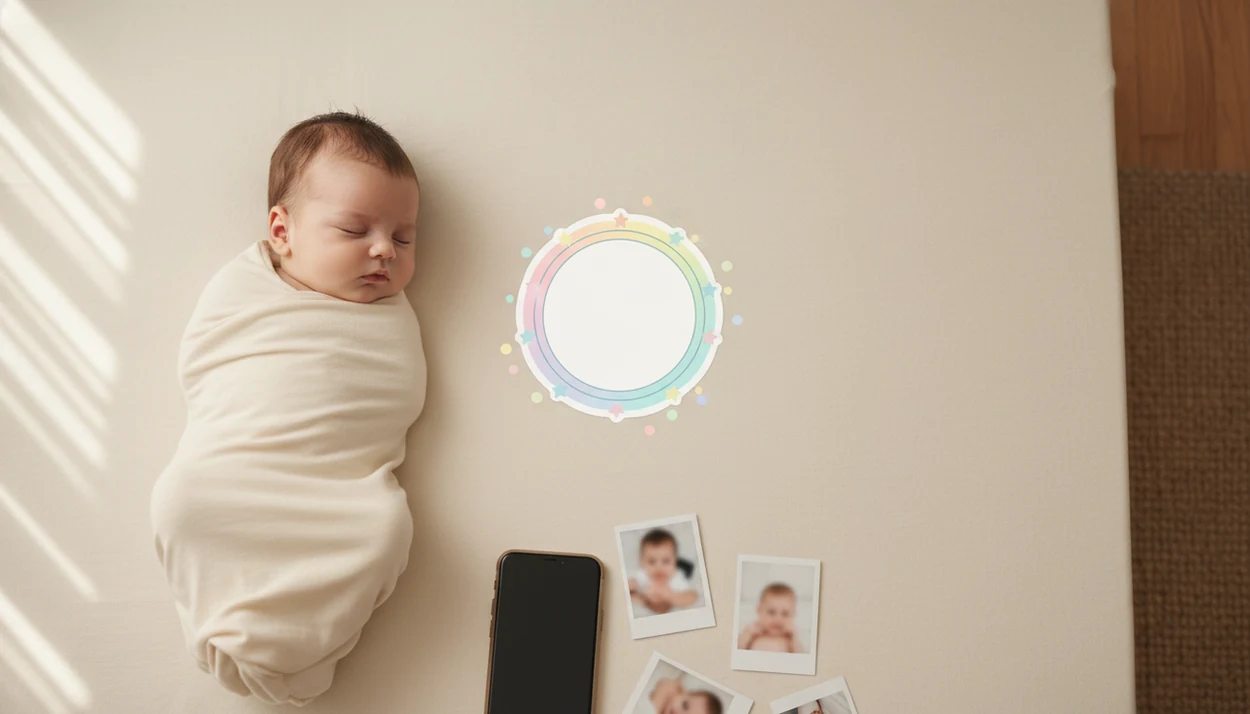
To learn how to add milestone stickers to baby photos cleanly, start with a bright simple photo, place one readable sticker in open space, keep it away from your baby’s face, and export the image at high quality. The cleanest results come from using a consistent sticker style, size, and placement across each monthly photo.
> Adding baby milestone stickers means placing digital or physical labels such as “1 month,” “first smile,” or “first holiday” on a baby photo to mark a specific age, stage, or memory.
- Use a clear, well-lit baby photo with a plain blanket, wall, crib sheet, or floor area for easy sticker placement.
- Place milestone stickers in open space, not over the baby’s face, hands, body details, or busy patterns.
- Keep one consistent sticker style, color palette, and export size so the full milestone series looks cohesive.
What Baby Milestone Stickers Add To Baby Photos
Baby milestone stickers turn a regular baby photo into a dated keepsake by naming the stage, age, or event shown in the image. They can be physical stickers placed on a onesie or blanket, or digital stickers added later in an app.
Common labels include “1 month,” “6 months,” “first tooth,” “first smile,” “100 days,” “first birthday,” and holiday notes. Digital stickers are useful when the baby is already asleep, the physical sticker wrinkled, or the best photo happened before anyone remembered the label.
The crooked swaddle after feeding is still worth saving.
Baby Photo Art is a baby photo editor app that turns baby and newborn photos into milestone templates, stickers, portraits, and print-ready keepsakes for parents.
Before You Add Baby Milestone Stickers On A Phone
Before you add baby milestone stickers, choose the photo and the label first. A clean starting image gives the sticker room to breathe and keeps the baby as the main subject.
- Start with a sharp photo in soft natural light, not a dark blur from across the room.
- Use a plain blanket, wall, crib sheet, or floor area with empty space for the sticker.
- Pick one milestone label before editing, such as “3 months” or “first holiday.”
- Mobile editing is practical because Pew Research Center reports that 97% of U.S. adults ages 18–29 own a smartphone: https://www.pewresearch.org/internet/fact-sheet/mobile/
- Review app permissions and privacy settings before uploading baby photos.
If the background is doing too much, simplify the edit. A cluttered kitchen counter behind a baby in a bouncer will fight every sticker you add. For sticker-focused tools, a baby photo stickers app should let you resize, move, and export clearly.
How Milestone Sticker Placement Works In Baby Photos
Milestone sticker placement works by guiding the eye to the baby first, then to the text. The sticker should support the memory, not compete with eyelashes, tiny socks, or the expression you meant to keep.
Place stickers in open areas: a blanket corner, blank wall space, a crib sheet section, or beside the baby’s body. Scale matters. If the sticker is too large, it becomes the subject. If it is too small, grandparents may not read it on a phone. Contrast matters too; pale cream text on a patterned sleeper usually disappears.
Rotation should look intentional, not accidentally tilted. Leave a margin so square crops, story crops, and prints do not slice the label. Never cover the face, hands, feet, outfit details, hospital ID bracelet, or safety context.
How baby milestone sticker tools work: AI-powered baby photo tools may clean background clutter and adjust lighting before stickers are layered. In technical terms, the app detects image regions and uses segmentation to separate subject from background. In plain language, it tries to protect the baby while tidying the scene.
Good AI baby-photo tools should make small cleanup adjustments, keep the baby recognizable, and leave the final sticker placement under the parent’s control.
How To Use A Phone App To Add Milestone Stickers
Use a phone app to add milestone stickers by importing the photo, choosing one clear label, placing it in open space, and checking the export before sharing. The workflow should feel simple enough to finish during a nap window.
- Import or take the baby photo, then choose the sharpest frame with open background space.
- Choose a milestone sticker or template, such as “4 months,” “first smile,” or “first birthday.”
- Drag the sticker beside the baby, then resize it until the text is readable but not dominant.
- Rotate and align the sticker lightly, keeping it away from the face, hands, feet, and outfit details.
- Check readability at phone size, then zoom in for sticker edges, artifacts, and face protection.
- Export a high-quality file for printing and a smaller copy for family messages.
Tools like Baby Photo Art can create milestone templates, stickers, portraits, and print-ready keepsakes for parents. If you want more playful overlays, cute baby photo stickers can still look clean when you keep one main label.
Clean Milestone Sticker Placement Rules For Monthly Baby Photos
How do you make monthly baby milestone stickers look clean? Use one main sticker, repeat the same placement, and protect enough blank space for cropping.
Keep one main sticker per image unless the design has a clear reason for a second element. Use the same corner or side across the monthly series, especially if you plan to print a first-year grid. Put “1 month” in the lower right, for example, then keep using that spot.
Text needs to be large enough for small phone screens and older relatives. The pocket check is real. A label that looks fine on a tablet may vanish in a message thread.
Use strong contrast between sticker text and background. Avoid edges where square social crops, vertical stories, or 4x6 prints can cut off the label. Because shared photos are often viewed as compressed phone previews, design for the tiny preview, not only the full-size file.
For monthly layouts, consistent milestone sticker placement is often better than changing the design each time because the baby’s growth becomes easier to compare.
Common Mistakes When You Add Baby Milestone Stickers
The most common mistake is making the sticker louder than the baby. Oversized labels, extra emojis, long dates, and decorative clusters can turn a sweet phone snap into a crowded graphic.
Low-contrast text is another problem. A white “5 months” sticker on a cream blanket may look delicate, but it can disappear after compression. Busy blankets and patterned outfits make this worse.
Heavy filters can also push the edit too far. Keep the baby’s face recognizable, especially around cheeks, eyes, and skin tone. The orange cast from a bedside lamp on a newborn’s cheeks can be softened, but it should not become plastic-smooth.
Physical stickers bring their own friction. They wrinkle, peel, or shift during the shoot. Digital stickers avoid that cleanup, but they cannot fully rescue a dark, blurry original. If you are testing options, an app that adds cute stickers to baby photos should still let you keep the edit restrained.
Export Checks For Clear Baby Milestone Sticker Photos
Export checks prevent a clean edit from becoming unreadable after sharing or printing. Review the final image at several sizes before you send it to family or order prints.
First, zoom out to phone-screen size. If the milestone text is hard to read there, enlarge it or increase contrast. Then zoom in. Check sticker edges, strange AI artifacts, and whether the baby’s face, fingers, toes, or bracelet stayed untouched.
Save the original unedited photo separately. Before sharing, remove visible private details such as address labels, hospital signs, school names, or location clues. The FTC also advises parents to review privacy settings before posting children’s photos online: https://consumer.ftc.gov/consumer-alerts/2022/09/sharenting-think-you-post Export one high-resolution file for prints and a smaller copy for messages or social sharing. Test common crops, including square, vertical story, and 4x6. We always check whether a 4x6 print will cut off the top of a knit hat.
Name files consistently, such as `baby-03-months-print` and `baby-03-months-share`. A print-ready version usually works best when it is exported separately from the social copy because each format crops and compresses differently.
Limitations
Milestone sticker edits are useful, but they cannot fix every photo or design problem. Start with realistic expectations before you spend time adjusting tiny details.
- Dark, blurry, or poorly composed photos limit final quality, even in a strong editor.
- AI background edits can create artifacts around hair, blankets, hands, props, and crib rails.
- Too many filters and stickers can make baby photos look artificial instead of natural-looking.
- Some apps store or process baby photos differently, so privacy policies and upload settings matter.
- Physical milestone stickers can wrinkle, peel, or move while the baby stretches or rolls.
- Very small, thin, or decorative fonts may be hard for relatives to read.
- Crowded scenes with siblings, toys, pets, or busy rooms are harder to edit cleanly.
- Private details, such as hospital room signs or address labels, should be hidden before you share.
Apps such as BabyPhotoArt, Canva, and Baby Pics can help with layouts, but the parent still needs to check the crop, privacy setting, and final face protection.
FAQ
Where should I place milestone stickers on baby photos?
Place milestone stickers in open space such as a blanket corner, blank wall, crib sheet area, or clear side of the frame. Keep the sticker away from the baby’s face, hands, feet, and important outfit details.
Can a milestone sticker cover part of the baby?
A milestone sticker should not cover the baby’s face, hands, body details, medical context, or safety context. If it must overlap, keep it on empty background rather than the baby.
What size should baby milestone stickers be in a photo?
Baby milestone stickers should be large enough to read on a phone screen but small enough that the baby remains the focal point. Test the image zoomed out before exporting.
Are digital milestone stickers better than physical stickers?
Digital milestone stickers are easier to move, resize, and remove after the photo is taken. Physical stickers can look charming, but they may wrinkle, peel, or shift during the shoot.
Which baby photos work best for milestone stickers?
The best photos for milestone stickers are sharp, bright, and simple, with soft light and open background space. Plain blankets, walls, crib sheets, and floors usually work well.
Can I use free apps to add milestone stickers?
Yes, free baby photo stickers can work if the app allows resizing, repositioning, rotation, and high-quality export. Avoid apps that force heavy watermarks or low-resolution saves.
How do I avoid making baby milestone photos look cluttered?
Use one focal sticker, simple colors, readable text, and enough open space around the baby. Keep dates, emojis, and extra decorations minimal.
Should monthly baby milestone photos match each other?
Monthly baby milestone photos look more cohesive when backgrounds, angles, sticker styles, and placement match. Consistency makes the first-year series easier to compare, print, and share.