
How to Make a Birth Announcement Photo With Your Phone
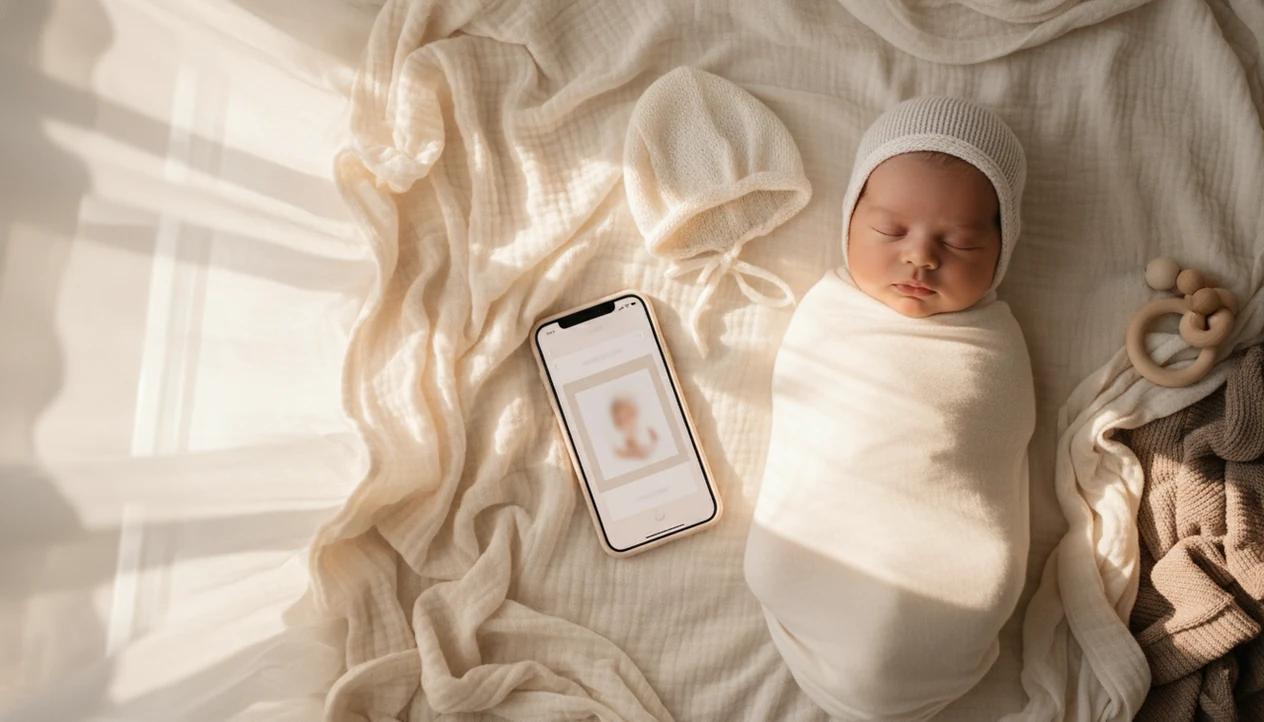
To make a birth announcement photo with your phone, take one clear newborn picture in soft light, add the baby’s name and birth stats in a readable template, then save separate versions for text, social, and print. Keep the setup simple, use natural-looking edits, and test the final size before ordering cards.
A phone birth announcement photo is a newborn image edited on a smartphone with the baby’s name, birth date, time, weight, and length in a shareable or printable design.
- Use soft window light, a simple blanket, and a calm time after feeding or changing.
- Add only the key birth details: name, date, time, weight, and length.
- Save one master design, then resize it for messages, social posts, and printed cards.
At-a-Glance Birth Announcement Photo Steps for Phone Users
- Shoot near soft natural light in a clean, warm room. A bright window usually beats a ceiling light, especially on newborn skin.
- Choose one simple background and one or two soft props. A plain blanket keeps attention on the baby, not the setup.
- Take more photos than you think you need. Tiny expression changes matter when the final image includes text.
- Add readable birth stats with a template, sticker pack, or baby photo app. Keep the baby's face recognizable and the layout calm.
- Save separate versions for text message, social media, and print. For new parents, one master announcement file is often easier than rebuilding the same design three times.
That last step saves time later.
Phone Camera Workflow for a Birth Announcement Photo
A phone birth announcement workflow turns one sharp newborn photo into a designed keepsake by combining camera capture, light correction, text placement, and export sizing.
Phone cameras rely on light, focus, stabilization, and image processing. In plain terms, the phone needs enough light to avoid blur, then it sharpens and balances the image after you tap the shutter. A dim hospital-room photo with a wrinkled white blanket and a rolling bassinet in the background can still work, but it needs a careful crop.
Editing apps then layer templates, text, stickers, and gentle enhancements over the original image. Tools like Baby Photo Art, Canva, Baby Pics, and Picsart can help with layouts. Good AI-powered baby and newborn photo tools deliver face-preserving lighting fixes, milestone templates, stickers, and portrait-style edits for parents, not a different-looking child.
Phone, Lighting, and Baby Setup Before the Newborn Announcement Photo
How do you prepare your phone and baby for a birth announcement photo? Start with a charged phone, a clean lens, portrait mode if it helps, and the highest practical resolution your camera settings allow.
Pick a warm room with indirect window light. Avoid harsh overhead light because it can create shadows under the eyes and an orange cast on a newborn’s cheeks, especially near a bedside lamp. Turn the baby so the light falls across the face softly, not straight into the eyes.
Time the photo after feeding, changing, and warming. Sleepy is useful. Safe is required. For any lying-down setup, keep the baby on a firm, flat, clear surface and stay within arm’s reach; the American Academy of Pediatrics gives similar safe-sleep guidance for flat, non-inclined surfaces: https://www.healthychildren.org/English/ages-stages/baby/sleep/Pages/A-Parents-Guide-to-Safe-Sleep.aspx. Use a flat, supported position and skip complex poses that require hidden hands or studio compositing. If you want a ready layout after the photo, a newborn announcement photo app can handle the design step without changing the setup.
5 Phone Steps to Make a Birth Announcement Photo
1. Set the scene in soft light
- Set a simple blanket or bassinet near indirect window light. Remove bright clutter, including a laundry basket behind bassinet if it pulls the eye.
2. Take several safe newborn photos
- Take calm photos from above and slightly to the side. Keep the baby flat, supported, and comfortable.
3. Pick the clearest master image
- Choose the sharpest photo with relaxed eyes or a peaceful sleeping expression. Leave clean space beside the baby for text.
4. Add name and birth stats
- Open a template, sticker, or AI baby photo app and add the baby’s name, date, time, weight, and length. Apps such as BabyPhotoArt can help when you want small adjustments, not a new baby.
5. Save share and print versions
- Export one master file, then resize it for social, messaging, and print. A phone-made announcement usually works best when the original image is sharp and the text is added after cropping.
Readable Text and Birth Stats for a Newborn Announcement Photo
Include the baby’s name, birth date, birth time, weight, and length. Those five details are enough for most birth announcements, and they fit cleanly on a phone screen.
Optional details include parents’ names, a sibling mention, or a short welcome line. Keep it brief. A line like “Welcomed with love” reads better than a crowded paragraph, especially when relatives view the image in a group text.
Use high contrast text, such as dark type on a pale blanket area or white type over a muted background. Avoid placing words over the baby’s face, hands, or patterned fabric. Tiny decorative fonts may look sweet in the editor, but they often vanish when printed or compressed. The tiny hospital ID bracelet can stay visible if it matters to the story.
Best Phone App Choices for Birth Announcement Templates
The best app type depends on whether you need layout speed, photo cleanup, or card ordering. Review photo upload, storage, and sharing policies before using any app with newborn images. For privacy checks, look for whether the app stores uploads, shares data with third parties, or uses photos to improve AI models; the FTC’s app privacy guidance explains what to review before installing or uploading: https://consumer.ftc.gov/articles/how-protect-your-privacy-apps.
| App type | Good for | Watch for |
|---|---|---|
| Template apps | Fast layouts, typography, and announcement cards | Generic designs that may need baby-specific spacing |
| AI baby photo editor apps | Natural-looking edit, smoother backgrounds, portrait-style looks | Over-smoothing or changing facial details |
| Sticker and milestone apps | Birth stats, soft icons, ribbons, and baby-themed overlays | Too many decorations around the baby |
| Print-ordering apps | Cards, magnets, and family mailers | Cropping that cuts off hats, toes, or text |
If you only need a simple layout, a free baby announcement photo maker may be enough. For AI edits, keep changes gentle and check the baby’s face before you share.
Common Phone Mistakes in Birth Announcement Photos
The most common phone mistake is shooting in light that is too dim. Grain and motion blur are hard to repair later, even with a good editor.
Another problem is adding too much. Three props, a patterned swaddle, large stickers, and a script font can make the design feel crowded. One soft prop is usually enough. A blue ribbon on ultrasound frame can be meaningful, but it should not compete with the newborn photo.
Heavy filters also age poorly. They can make skin tones look waxy, pink, gray, or oddly smooth. That matters more in print, where color shifts are easier to notice.
Don’t rush the timing. Taking the photo immediately after birth is not required. A settled baby, a clearer room, and a calmer parent often make a better announcement.
Print and Share Checks for Newborn Announcement Photo Steps
Before sharing or printing, zoom in and check the baby’s eyes, fingers, text edges, and skin tone. Confirm the spelling, birth date, time, weight, and length before you send it to anyone.
Export a high-resolution version for print and a smaller version for messaging if your app offers both. Phone sharing is common: Pew reported that 85% of U.S. adults owned smartphones in 2021 (https://www.pewresearch.org/internet/fact-sheet/mobile/), and about 72% used at least one social media site that year (https://www.pewresearch.org/internet/fact-sheet/social-media/), so many families expect a digital announcement.
Still, print has different rules. Test one copy before ordering bulk cards. We always check whether a 4x6 print will cut off the top of a knit hat or the last line of text. For family layouts beyond one image, a baby photo collage maker can help separate announcement, sibling, and grandparent versions.
Limitations
Phone birth announcements are practical, but they have real limits.
- Low light can cause blur and grain that apps cannot fully repair.
- AI tools and filters can over-smooth skin, erase texture, or change tiny details if used heavily.
- Parents should review app privacy policies before uploading newborn photos, especially if cloud processing is involved.
- Unsafe poses, hanging props, or complex studio-style setups should not be attempted at home.
- Printed cards reveal flaws that may not be obvious on a phone screen.
- A tired parent may be better served by one simple design instead of many elaborate versions.
- Cropping can remove meaningful details, such as birth bracelets, tiny toes, or the edge of a bonnet.
Simple wins here.
FAQ
Can I use a phone photo for a birth announcement?
Yes. A modern phone photo is enough if it is sharp, well-lit, and saved at high resolution.
When should I take a newborn birth announcement photo?
Take it when the baby is fed, changed, warm, and settled. It does not need to happen immediately after birth.
What birth details should I add to the photo?
Add the baby’s name, birth date, birth time, weight, and length. Parents’ names or a short welcome line are optional.
Which type of app should I use to make a birth announcement?
Use a template app for layouts, a baby photo editor app for natural-looking cleanup, or a print-ordering app for cards. Baby Photo Art is one option for baby-specific templates and gentle edits.
Can I print a birth announcement made from a phone photo?
Yes, if the image is high resolution and exported at the right size. Order or make one test print before buying bulk cards.
Are filters bad for newborn announcement photos?
Subtle edits are fine. Heavy filters can distort newborn skin tone and reduce print quality.
How do I make birth announcement text readable on a phone screen?
Use high contrast, simple fonts, larger type, and open space in the photo. Avoid placing text over patterned blankets or the baby’s face.
Is AI editing safe for baby birth announcement photos?
AI editing is safest when it keeps the baby’s face recognizable and uses natural-looking adjustments. Check privacy settings and avoid tools that heavily alter identity or sensitive details.