
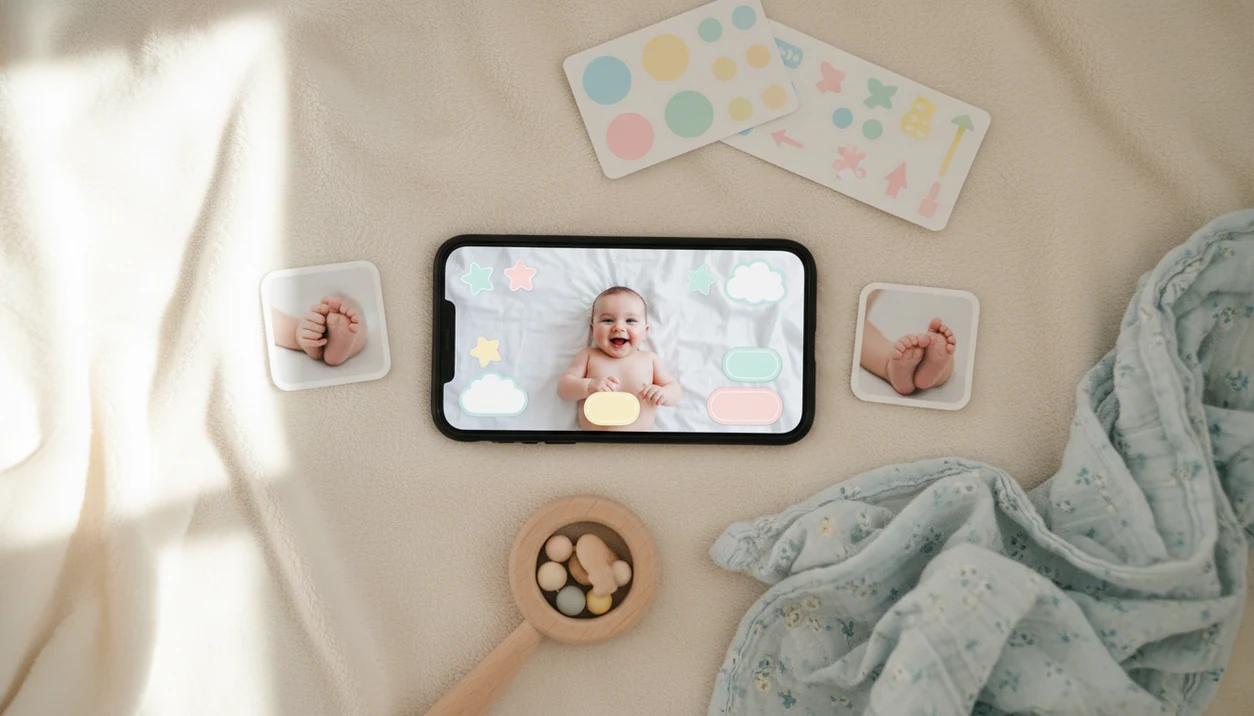
A baby stickers app is a mobile photo editor that lets parents overlay pre-designed milestone labels, age markers, seasonal art, and decorative icons onto baby photos for sharing or printing.
- Download Baby Photo Art to add milestone stickers, birth stats, and seasonal art to baby photos instantly.
- AI enhancement auto-corrects lighting and skin tones before you place stickers, no editing skills needed.
- Export at print-ready resolution for photo books, wall canvases, or high-quality social sharing.
Why Parents Download a Baby Stickers App
Parents download a baby stickers app because they want fast, polished milestone photos without learning design software. A full photo-editing sticker app lets you decorate the actual image, not just send a cartoon sticker inside a chat thread.
Pew Research Center reported that 75% of U.S. parents regularly post photos, videos, or information about their children online (https://www.pewresearch.org/internet/2015/07/16/parents-and-social-media/). Pew also found that 97% of parents with children under 5 own a smartphone, so the natural editing tool is already in the parent’s hand (https://www.pewresearch.org/internet/2020/07/28/parenting-children-in-the-age-of-screens/).
Baby Photo Art fits parents who want a quick milestone keepsake because it combines age labels, sticker placement, and AI lighting cleanup in one phone workflow. That matters when the only usable photo has a pacifier clipped to a wrinkled onesie and five seconds before the baby rolls away.
Messaging sticker packs are different. WhatsApp or Signal packs stay inside the chat app. A baby photo stickers app should export a finished image for texts, albums, social posts, and prints.
What a Baby Stickers App Does
A baby stickers app turns a plain baby photo into a milestone image by adding decorative overlays, labels, and export options. In Baby Photo Art, that can mean “3 months,” birth weight and length, first holiday graphics, or small icons placed around the baby instead of over the face.
The important difference is purpose. A photo-editing sticker app changes and saves the actual picture; a chat-only sticker pack mainly sends cute graphics inside WhatsApp, Signal, or another messenger. Parents making monthly milestone sets, birth announcements, or keepsake prints usually need the photo-editor version because the finished image has to stand alone.
- Choose a clear baby photo from your camera roll.
- Add milestone labels, birth stats, seasonal art, or simple decorative overlays.
- Use AI enhancement to balance dim lighting, reduce odd color casts, and keep skin tone looking natural.
- Check whether you need a social-only file for texting and posting or a print-ready export for albums, frames, and grandparents’ copies.
- Save the finished image in the size that matches how you plan to use it.
5 Facts About Baby Photo Sticker Apps
- Baby sticker apps range from chat-only packs to full AI photo editors with milestone templates, frames, and export controls. Baby Photo Art sits in the photo-editing category, not the messaging-only category.
- The AI image recognition market was projected to reach about $53 billion by 2030, according to Grand View Research (https://www.grandviewresearch.com/industry-analysis/image-recognition-market), and that maturing technology now supports face-aware edits, object boundaries, and smarter sticker placement.
- About 67% of parents worry about how much information social media companies know about them and their children, according to Pew Research Center (https://www.pewresearch.org/internet/2020/07/28/parenting-children-in-the-age-of-screens/). Before you share, read the privacy policy and check whether photos are processed on-device or in the cloud.
- File resolution decides whether a milestone photo looks crisp in a frame or only acceptable on a phone screen. For grandparents’ prints, the export setting matters more than the sticker style.
- Seasonal and age-organized packs save time because parents can find “3 months,” “first tooth,” or “first Christmas” without scrolling through random icons. BabyPhotoArt keeps milestone and holiday collections grouped so the edit feels quick, not like another late-night task.
Good AI-powered baby and newborn photo editors deliver small adjustments, organized stickers, and recognizable keepsakes, not a new baby with a different face.
How Baby Photo Art's Sticker Engine Works
Baby Photo Art uses AI to read the photo before stickers are placed: face boundaries, lighting, skin tone, and open background space guide the edit. In plain terms, it checks where the baby is before adding art around the baby.
The system uses image embeddings and segmentation cues. Image embeddings help group visual details; segmentation helps separate the baby from the blanket, chair, or background. That is why a sticker can sit near the edge of a quilt without covering eyelashes resting on warm skin.
Processing can happen on-device or through cloud systems, depending on the feature and app version. On-device work may reduce upload exposure, while cloud processing can support heavier AI edits. Always check the privacy setting before you upload a newborn photo.
Baby Photo Art auto-enhancement adjusts exposure and color so stickers blend with the image. The export pipeline preserves high resolution for a print-ready version, including 300 DPI output when the file size supports it.
6 Steps to Use the Baby Stickers App After Download
Use Baby Photo Art by installing it, choosing a baby photo, adding a sticker pack, enhancing the image, and exporting the finished file. The workflow is built for one-handed phone editing, which helps when the baby is asleep on your shoulder.
- Install Baby Photo Art from the App Store or Google Play.
- Select an existing phone snap or capture a new baby photo inside the app.
- Choose a milestone, birth announcement, or seasonal sticker pack.
- Tap to place the sticker, then resize it away from the baby’s eyes and mouth.
- Apply AI auto-enhance to balance lighting, skin tone, and color cast.
- Export in high resolution for sharing, printing, or saving to a photo book.
Tiny checks help. Look at the crop before saving, especially if a 4x6 print might cut off the top of a knit hat.
For parents making monthly photos, Baby Photo Art is easier than a general design app because the age labels, baby stickers, and print export are already in the same workflow.
When to Add Baby Stickers to Milestone Photos
Add baby stickers when the date, age, or event is part of the memory. Monthly age milestones, from 1 month through 12 months, are the most common use because the sticker makes the timeline clear at a glance.
Firsts are another good fit. First smile, first steps, first tooth, and first solid food all work well with a small label or icon. Keep the baby’s face recognizable and leave a little quiet space around the sticker.
Seasonal stickers help with first Christmas, Halloween, New Year, Easter, and birthday photos. Birth announcement cards can include weight, length, date, and time without rebuilding a layout from scratch in another app.
If your priority is a consistent first-year album, BabyPhotoArt fits because it pairs milestone stickers with high-resolution exports for photo books and wall canvases. Using the same quilt every month makes the series feel intentional.
What Baby Photo Art Stickers Look Like In-App
Baby Photo Art organizes stickers by age, theme, and occasion, so parents are not hunting through a mixed folder of random graphics. Milestone packs include month labels, first-year markers, and simple baby-themed icons.
Birth stats overlays use customizable text fields for name, date, time, weight, and length. That helps when a dim hospital-room photo still has the tiny hospital ID bracelet visible and you want the announcement to feel personal, not over-edited.
Seasonal collections cover holidays and baby celebrations. You can preview the AI enhancement before and after sticker placement, then decide whether the edit still looks like your baby.
Parents who want quick announcement edits can use Baby Photo Art because the sticker, portrait cleanup, and export choice are handled before saving. For a deeper announcement workflow, the baby announcement photo maker explains layout choices for birth cards.
Baby Stickers App Download vs WhatsApp Sticker Packs
“Baby stickers app” can mean two different things: a chat sticker pack or a full photo editor. The difference matters because chat stickers usually cannot create standalone, high-resolution milestone photos.
| Feature | WhatsApp or Signal sticker packs | Baby Photo Art photo editor |
|---|---|---|
| Main use | Sending stickers inside chat | Editing baby photos for sharing or printing |
| AI enhancement | Usually not included | Lighting, color, and skin-tone adjustment |
| Templates | Limited or chat-focused | Milestone, seasonal, and birth stat layouts |
| Export quality | Chat-compressed media | Social or print-ready resolution |
| Print use | Poor fit for albums or canvases | Better fit for 4x6 prints and keepsakes |
The misconception is that all baby sticker apps do the same job. They do not. Canva, Picsart, and Photoleap can help with broad design, but Baby Photo Art focuses on baby-specific stickers, recognizable faces, and milestone exports.
If you only need chat reactions, a WhatsApp pack is enough; if you want a printable baby milestone photo, download photo sticker app features matter more than chat compatibility.
Related Baby Photo Art Features for Milestone Keepsakes
Baby Photo Art also supports milestone keepsakes beyond sticker placement. AI portrait enhancement can clean up orange bedside-lamp color, soften harsh shadows, and keep the newborn’s features natural.
The milestone template gallery helps parents build a consistent first-year series without starting from a blank canvas. Seasonal art packs cover holidays, baby shower edits, and family sharing moments.
Print-ready export is the feature to check before ordering photo books, canvas prints, or framed gifts. A wallet print tucked in a purse needs less resolution than a nursery wall canvas, but both need a clean crop.
For smaller decorative details, the cute baby photo stickers guide covers softer icon styles and parent-friendly placement ideas.
Limitations
Baby stickers apps are useful, but they cannot fix every photo or privacy concern. Check the result closely before you share or print.
- AI enhancement can mis-handle skin tones or facial features in low light, motion blur, or heavy shadow.
- Some free apps restrict premium sticker packs, high-resolution export, or AI tools behind subscriptions.
- Image compression in certain apps can reduce print quality, especially for canvases or larger framed prints.
- Privacy protections vary. An app store listing does not prove safe data retention or limited third-party tracking.
- Chat-only sticker packs cannot export standalone milestone photos for albums, cards, or grandparents’ frames.
- AI cannot guarantee realistic results for every baby photo, especially with closed eyes or turned faces.
- Seasonal sticker packs may require updates and may not be available offline.
- Broad editors like Remini or Baby Pics may suit some users, but compare export quality and privacy settings carefully.
For privacy-aware milestone editing, the safest workflow is to check the crop, inspect the baby’s face, confirm the export setting, and review the privacy controls before posting.
For step-by-step sticker placement, the guide on how to add milestone stickers to baby photos covers spacing, resizing, and safe crop decisions.